

While the Security Command Center (SCC) is built for continuous, real-time monitoring, there are many scenarios, such as pre-audit checks, post-deployment verification, or incident response, where you need to trigger a scan now.
This article explains how to manually initiate scans for the three primary pillars of SCC: Sensitive Data Protection (DLP), Web Security Scanner (WSS), and Security Health Analytics (Posture Assessment).
1. Sensitive Data Protection (DLP)
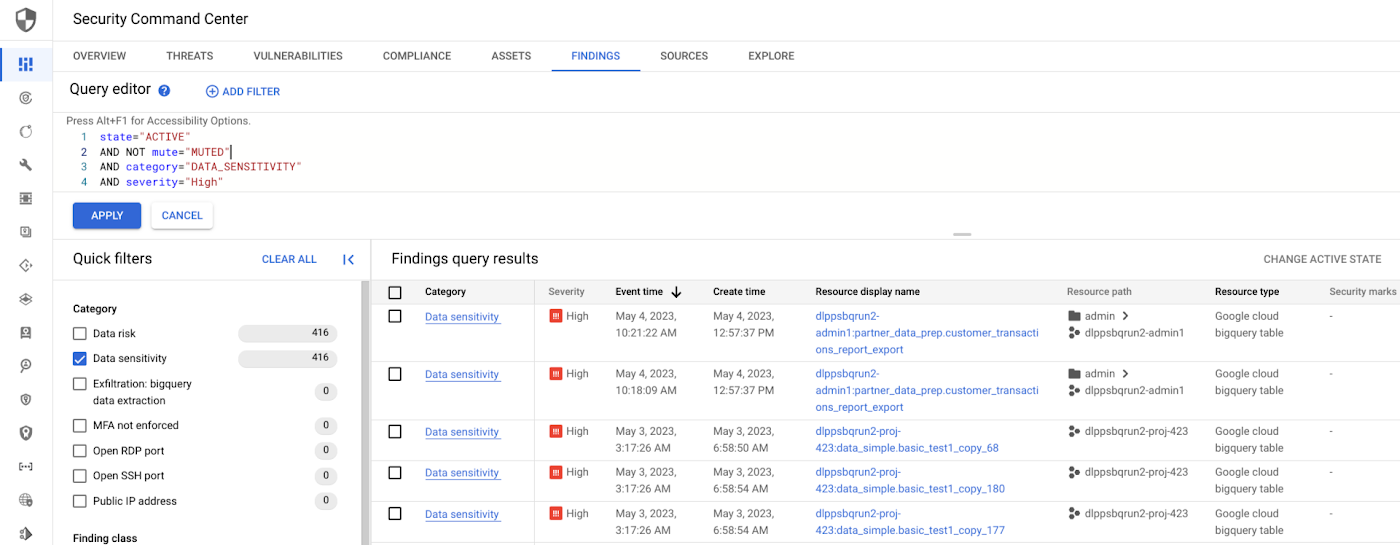
For fintech and high-compliance environments, scanning data stores for PII/PHI is critical. While SCC provides the “Data Risk” dashboard, the actual scanning engine is Sensitive Data Protection (SDP).
How to trigger a manual scan:
Manual “scans” in this context are called Inspection Jobs.
- Navigate to SDP: In the Cloud Console, go to Security > Sensitive Data Protection.
- Create Inspection Job: Define the source (e.g., a specific BigQuery table or GCS bucket used by Gemini Enterprise).
- Select InfoTypes: Choose the “Fintech” or “Healthcare” templates (searching for Credit Card numbers, IBANs, or SSNs).
- Run Now: Upon saving, the job begins immediately.
- SCC Integration: Once the job finishes, any high-risk findings are automatically pushed into the SCC Findings tab under the category of Data Risk.
2. Web Security Scanner (WSS)
WSS is used to find “low-hanging fruit” vulnerabilities like Cross-Site Scripting (XSS) or clear-text passwords in your web applications (App Engine, GKE, or Compute Engine).
How to trigger a manual scan:
- Access WSS: Go to Security > Security Command Center > Sources.
- Select Web Security Scanner: Find your existing scan configs.
- Run Scan: If you have a scan config created for your application’s URL, simply click the Run button.
- Deep Scan vs. Quick Scan: Note that manual triggers follow the parameters defined in your config (e.g., whether it should attempt to “crawl” the site or just check the homepage).
- No Action: WSS is strictly a probe; it identifies the vulnerability and lists the remediation steps in SCC without touching your code.
3. Posture Assessment (Security Health Analytics)
Security Health Analytics (SHA) is the engine that checks your infrastructure against PCI-DSS, HIPAA, and CIS Benchmarks. While it usually runs on a batch schedule (every 24 hours) or upon configuration changes, you can force an update.
How to trigger a manual update:
Unlike WSS, SHA does not have a “Scan Now” button for the entire cloud. However, you can force the system to re-evaluate your posture in two ways:
- Asset Rediscovery: In the SCC Assets tab, you can refresh the asset list. This forces SCC to re-crawl your project and identify new resources.
- The “Touch” Method: By making a minor change to a resource (e.g., adding a label to a BigQuery dataset), you trigger a Cloud Asset Inventory (CAI) notification. SHA picks up this change immediately and re-scans that specific asset for compliance violations.
SCC Enterprise API: Advanced users can use the findings.bulkMute or findings.setState API calls to clear old findings, which prompts the engine to re-verify the current state.
Summary Table: Manual Scan Capabilities
| Feature | Primary Engine | Manual Trigger Mechanism | Primary Compliance Focus |
|---|---|---|---|
| Data Discovery | SDP (formerly DLP) | Create/Run “Inspection Job” | PII, PHI, Financial Data |
| App Security | Web Security Scanner | “Run Scan” on Scan Config | XSS, SQLi, Cleartext Passwords |
| Infra Posture | Security Health Analytics | Asset Refresh / Resource Change | PCI-DSS, HIPAA, SOC2 |